declare @db_name varchar(100) = 'dbname';https://gist.github.com/szunyog/7941990
declare @kill_commands varchar(max) = '';
select
@kill_commands=@kill_commands+'kill '+convert(varchar(5),spid)+';'
from master..sysprocesses
where
spid <> @@SPID -- avoid to kill the current process
and dbid=db_id(@db_name)
print 'Executing: ' + @kill_commands;
exec (@kill_commands);
Killing other processes connected to an MSSQL database


Lists all foreign keys (source and ref columns) in a MSSQL database
This script lists all foreign key references in a MSSQL database, using system tables:
SELECThttps://gist.github.com/szunyog/7579122
t.name AS TableWithForeignKey,
c.name AS ForeignKeyColumn,
r.name AS ReferencedTable,
rc.name AS ReferencedColumnName
FROM sys.foreign_key_columns AS fk
inner join sys.tables AS t
on fk.parent_object_id = t.object_id
inner join sys.columns AS c
on (t.object_id = c.object_id
AND fk.parent_column_id = c.column_id)
inner join sys.tables AS r
on fk.referenced_object_id = r.object_id
inner join sys.columns AS rc
on (r.object_id = rc.object_id
AND rc.column_id = fk.referenced_column_id)
ORDER BY
TableWithForeignKey,
fk.constraint_column_id
Django email setup on Hostgator
On Hostgator it is possible to run Django applications with FastCgi, but it has only sendmail as email back-end which is not included in Django.
Hopefully there is a snipets to resolve this limitation. You just needed to change the path of the sendmail file and it was ready to run. The location of sendmail is "/usr/sbin/sendmail" on our Hostgator server.
And the email backend should be configured in your settings.py by adding the following line:
Hopefully there is a snipets to resolve this limitation. You just needed to change the path of the sendmail file and it was ready to run. The location of sendmail is "/usr/sbin/sendmail" on our Hostgator server.
And the email backend should be configured in your settings.py by adding the following line:
EMAIL_BACKEND = 'sendmail.EmailBackend'
Dajngo app unicode JSON repsonse
If your django application has unicode data, and your view uses jquery and JSON response, do not forget to specify the encoding for the mimetype:
return HttpResponse(simplejson.dumps(your_data),
mimetype='application/json; charset=utf-8')
Open OpenOffice documents from a network share using nautilus
Under my gnome desktop, I had a problem when tired to open documents from a network share with OpenOffice. When I tired the spalsh screen appeared, but the document did not open.
After some searching I found the debian squeze has a package openoffice.org-gnome. I was curious what is the difference between the standard openoffice.org package and this one. Soon I found it's home page: http://projects.gnome.org/ooo/
Almost the first line said:
I installed and the problem went away.
After some searching I found the debian squeze has a package openoffice.org-gnome. I was curious what is the difference between the standard openoffice.org package and this one. Soon I found it's home page: http://projects.gnome.org/ooo/
Almost the first line said:
Gnome-VFS - G/OO.o allows transparent access to allow documents to be loaded / saved from a range of Gnome VFS backends, eg. Samba shares.
I installed and the problem went away.
django-expense v0.2.0
Django-expense, a simple personal expense tracker application for Django.
Version 0.2.0 has just released with the following new features:
Source code is available on bitbucket.
If you have any question, feel free to open a ticket or send a message.
Have fun!
Version 0.2.0 has just released with the following new features:
- Charts, using flot jQuery library.
- Updated documentation with screen shoots.
- Fixed expense screen appearance with django 1.3.
- Added test application into the source tree to make trying/testing easier.
- Added initial data.
Source code is available on bitbucket.
If you have any question, feel free to open a ticket or send a message.
Have fun!
Resize files using one command
Using ImageMagick it is easy to resize multiple images by the following command:
A bit detailed version of this script can be found in my bitbucket repository: resizer.sh
for i in `ls *.JPG`; do convert -resize 1024 $i $i; done
A bit detailed version of this script can be found in my bitbucket repository: resizer.sh
django-expense
About two years ago I tired Dajngo, the popular python web framework. I was impressed how easy and logical is the usage of it. I started to create some simple apps only for personal usage. One of these apps was django-expense, a simple personal/family expense tracker application.
Now I refactored a bit and put the source to bitbucket.
From the user view: It is uses the default Dajngo admin site and you can record expenses and check them in monthly or yearly view.
From technical view, you can find examples to the following django specific areas:
If you interested you can get the source using mercurial from bitbucket or download the latest version.
Now I refactored a bit and put the source to bitbucket.
From the user view: It is uses the default Dajngo admin site and you can record expenses and check them in monthly or yearly view.
From technical view, you can find examples to the following django specific areas:
- Aggregation
- Customized ChangeList view
- Custom filterspec
If you interested you can get the source using mercurial from bitbucket or download the latest version.
IKEv2 VPN Client Setup on Debian Squeeze
Recently my company was set up a Windows 2008 VPN server. It is configured to accept only SSTP and IKEv2 protocols.
I did not find any working clients for Linux that uses SSTP protocol, but for IKEv2 strongSwan provides a quite easily configurable and working solution.
To set up the VPN client I did the following:
1. Installed the strongswan-ikev2 package.
2. Configured the /etc/ipsec.conf file (changed the bold values):
3. Set up the password for the user name in the /etc/ipsec.secrets file:
4. Put the certificate of the Certificate Authory into the /etc/ipsec.d/cacerts/ directory to trust the certificates which was created by this CA:
5. Restart ipsec:
6. To run the VPN connection type:
7. Use the VPN connection.
8. To stop the VPN connection type:
I did not find any working clients for Linux that uses SSTP protocol, but for IKEv2 strongSwan provides a quite easily configurable and working solution.
To set up the VPN client I did the following:
1. Installed the strongswan-ikev2 package.
# apt-get install strongswan-ikev2
2. Configured the /etc/ipsec.conf file (changed the bold values):
# ipsec.conf - strongSwan IPsec configuration file
# basic configuration
config setup
charonstart=yes
plutostart=yes
# Add connections here.
conn %default
ikelifetime=60m
keylife=20m
rekeymargin=3m
keyingtries=1
keyexchange=ikev2
conn companyvpn
leftfirewall=yes
leftauth=eap
eap_identity=username
right=serverip
rightauth=pubkey
rightid="C=XX, ST=State, L=Location, O=Organization, OU=OrgUnit, CN=CommonName, E=email"
rightsubnet=192.168.1.0/24
auto=add
leftsourceip=%config
include /var/lib/strongswan/ipsec.conf.inc
3. Set up the password for the user name in the /etc/ipsec.secrets file:
username : EAP "password"
4. Put the certificate of the Certificate Authory into the /etc/ipsec.d/cacerts/ directory to trust the certificates which was created by this CA:
# mv CA.cer /etc/ipsec.d/cacerts/
5. Restart ipsec:
# /etc/init.d/ipsec restart
6. To run the VPN connection type:
# ipsec up companyvpn
7. Use the VPN connection.
8. To stop the VPN connection type:
# ipsec down companyvpn
Emacs Setup for Python Development on Debian Squeeze
This a brief description of how to install emacs as a python development environment on a Debian Squeeze.
If emacs is not installed than install it with apt:
Than install the following packages using apt:
However python-rope and python-ropemacs packages are available in the debian repository they are not working perfectly, so these packages should be installed by the python way, to do this we need the python-setuptools package:
Now we have ease_install, so use it to install rope and ropemacs:
If easy_install could not find ropemacs you can download and install it manually from http://bitbucket.org/agr/ropemacs
Create a file which initializes the installed modules and name it to init-python.el and put it into your .emacs.d directory.
Add the following lines into your emacs config:
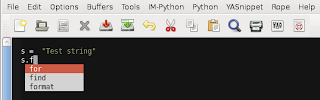
Ok, everything is ready let's try it. Start your emacs type and press TAB to complete, if everything is ok a popup should be appeared with the available completion:
Check C-h m to show key bindings.
References:
1. http://hide1713.wordpress.com/2009/01/30/setup-perfect-python-environment-in-emacs/
2. http://www.enigmacurry.com/category/emacs
If emacs is not installed than install it with apt:
$ sudo apt-get install emacs
Than install the following packages using apt:
$ sudo apt-get install python-mode pymacs auto-complete-el yasnippet pyflakes
However python-rope and python-ropemacs packages are available in the debian repository they are not working perfectly, so these packages should be installed by the python way, to do this we need the python-setuptools package:
$ sudo apt-get install python-setuptools
Now we have ease_install, so use it to install rope and ropemacs:
$ sudo easy_install rope
$ sudo easy_install ropemacs
If easy_install could not find ropemacs you can download and install it manually from http://bitbucket.org/agr/ropemacs
Create a file which initializes the installed modules and name it to init-python.el and put it into your .emacs.d directory.
Add the following lines into your emacs config:
(add-to-list 'load-path "~/.emacs.d/")
(progn (cd "~/.emacs.d")
(normal-top-level-add-subdirs-to-load-path))
; python setup
(require 'smart-operator)
(require 'auto-complete)
(global-auto-complete-mode t)
(require 'yasnippet)
(yas/initialize)
(yas/load-directory "~/.emacs.d/snippets")
(load-library "auto-complete-yasnippet")
(load-library "init-python")
Ok, everything is ready let's try it. Start your emacs type and press TAB to complete, if everything is ok a popup should be appeared with the available completion:

Check C-h m to show key bindings.
References:
1. http://hide1713.wordpress.com/2009/01/30/setup-perfect-python-environment-in-emacs/
2. http://www.enigmacurry.com/category/emacs
Slow SSH Authenentication
I have set up an ssh server at my home from the default debian repository. Unfortunately, remote connections were quite slow, the authentication required about 30 sec. I tired to start the ssh client in verbose mode:
And after the last line it was hanging for a while. I suspected that it could be related with DNS lookups, so I added the following line into the server's sshd_config file:
After this the restart of the ssh server was required.
and the problem went away...
$ssh -v user@host
...
debug1: ssh_rsa_verify: signature correct
debug1: SSH2_MSG_NEWKEYS sent
debug1: expecting SSH2_MSG_NEWKEYS
debug1: SSH2_MSG_NEWKEYS received
debug1: Roaming not allowed by server
debug1: SSH2_MSG_SERVICE_REQUEST sent
debug1: SSH2_MSG_SERVICE_ACCEPT received
And after the last line it was hanging for a while. I suspected that it could be related with DNS lookups, so I added the following line into the server's sshd_config file:
UseDNS no
After this the restart of the ssh server was required.
#/etc/init.d/ssh restart
and the problem went away...
Find duplicated files in a directory subtree
Howto Setup Passwordless Atuhentication on GDM using PAM
Using PAM you can modify GDM authentication method not to ask for password at login. From security perspective this is not really advised, but when you share your workstation with your children or other family member it could be useful.
This howto modifies GDM and gnome-screensaver PAM modules to allow authenticate specified users without password.
Firstly, create a group whose members will be able to log on without password. My group name is home, so type the following command to make a new group and also add some members:
This howto modifies GDM and gnome-screensaver PAM modules to allow authenticate specified users without password.
Firstly, create a group whose members will be able to log on without password. My group name is home, so type the following command to make a new group and also add some members:
sudo addgroup homeModify your /etc/pam.d/gdm:
sudo adduser user1 home
sudo adduser user2 home
#%PAM-1.0Also add this line into your /etc/pam.d/gnome-screensaver (in this case the screen saver will not lock the user's screen when you switch between users, after suspend, etc...):
auth requisite pam_nologin.so
auth required pam_env.so readenv=1
auth required pam_env.so readenv=1 envfile=/etc/default/locale
auth sufficient pam_succeed_if.so user ingroup home
@include common-auth
auth optional pam_gnome_keyring.so
@include common-account
session required pam_limits.so
@include common-session
session optional pam_gnome_keyring.so auto_start
@include common-password
auth sufficient pam_succeed_if.so user ingroup home
@include common-auth
auth optional pam_gnome_keyring.so
Unpack compressed files into separate directories
Here is a little script to unpack all compressed files such as *.rar and put them into a separate directory:
for f in *.rar;do n=${f%.rar};mkdir "$n"; unrar x "$f" "$n/";done
Getting the directory where your script is located using windows command file
Getting the directory where your script is located it is not really trivial in windows command/script files, but you can get it with the following expression:
set CURRENT_DIR=%~dp0
echo %CURRENT_DIR%
Subscribe to:
Posts (Atom)